Open your store and claim your link
Sign in to the Elite Store dashboard, claim your elitestore.ai link in the pop-up and find your way around.
Your store dashboard lives at store.theeliteengines.com/elite-store. It uses your TEE account, so if you already use an Elite Engines tool you can sign in with the same email and password. Your store is created for you the first time you open the dashboard.
- Open store.theeliteengines.com/elite-store and sign in. Bookmark the page.
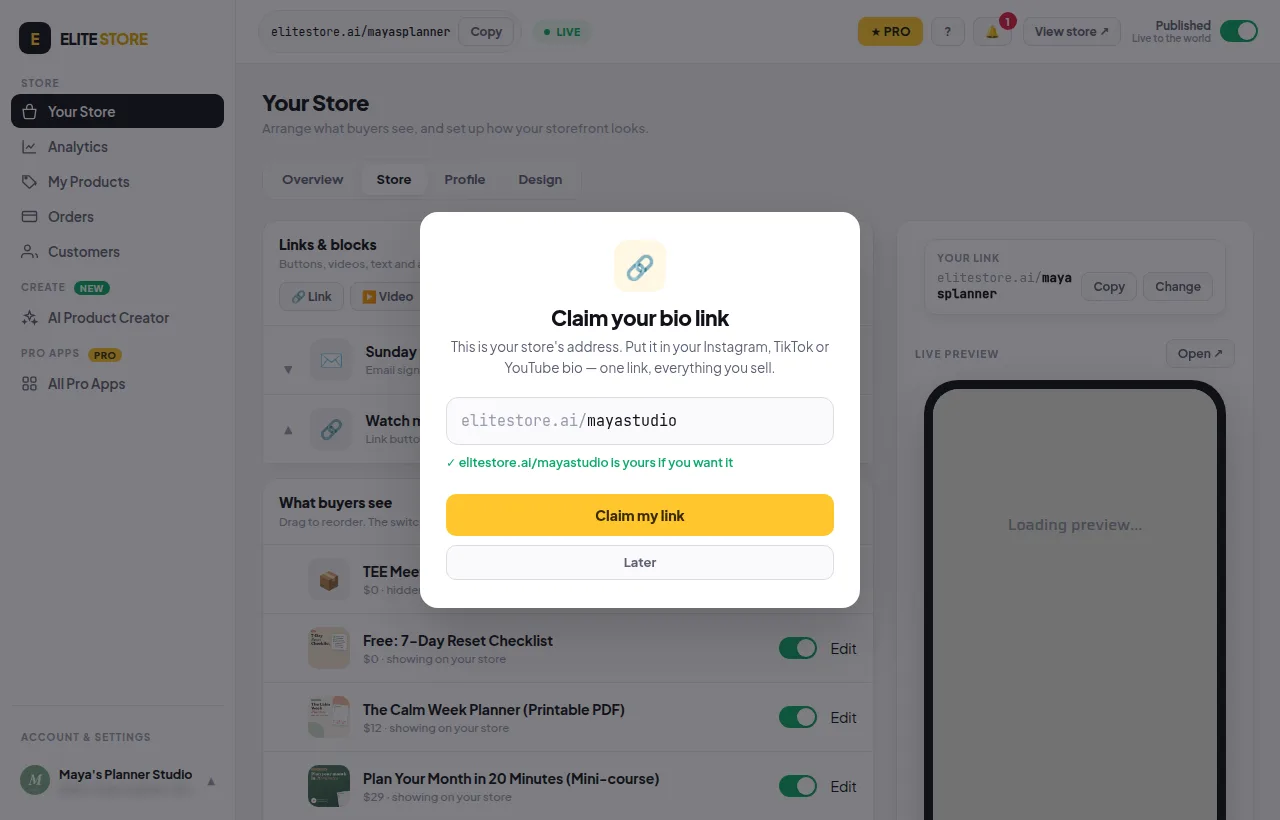
- The Claim your bio link pop-up opens. Type the name you want after elitestore.ai/ using letters, numbers and dashes.
- Wait for the green tick that says the name is yours if you want it.
- Click Claim my link. Click Later if you’re not ready to choose yet. The pop-up comes back on your next visit until you claim a name.
Find your way around
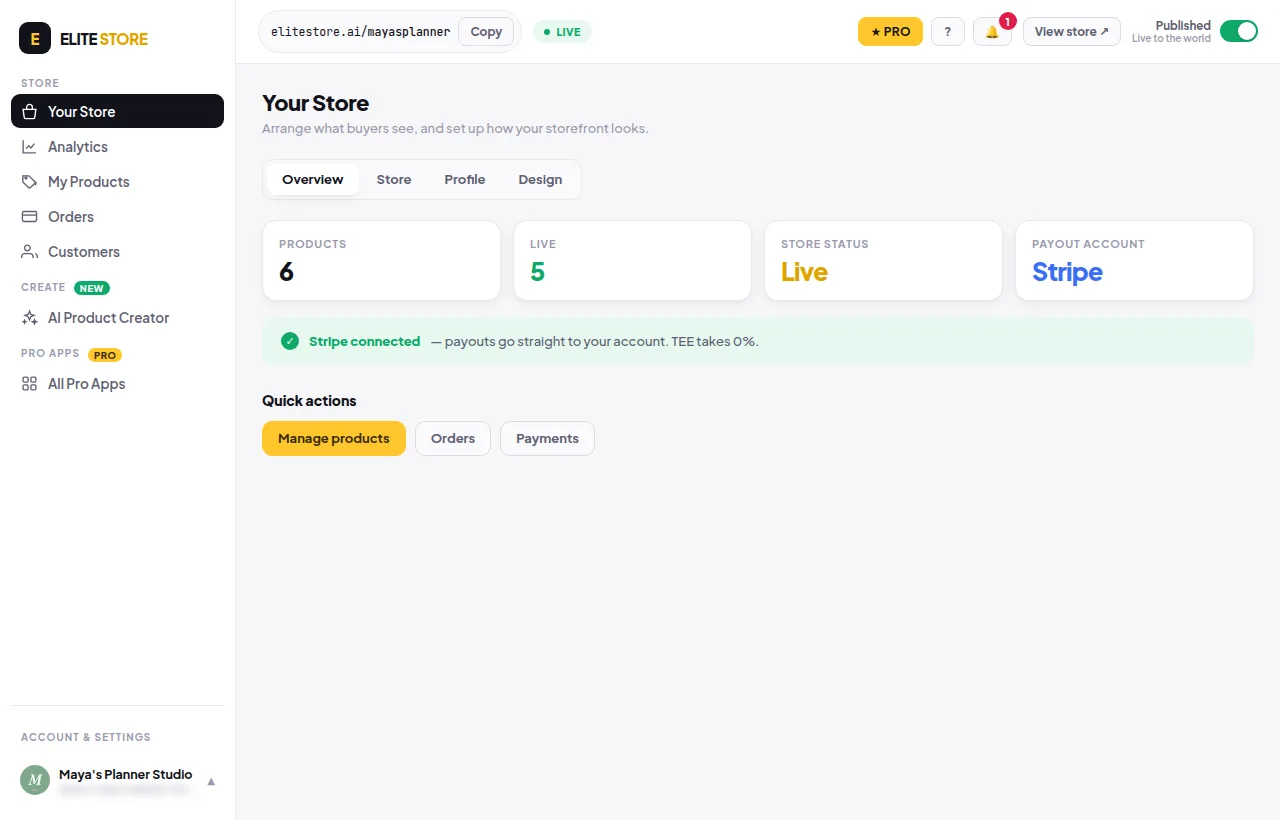
The left menu has Your Store, Analytics, My Products, Orders, Customers, AI Product Creator and All Pro Apps. Click your store name at the bottom of the menu for Store settings, Elite Partners, Help & Guide and Log out. On a phone the main sections sit in a bar along the bottom.
💡
Choose your name carefully. After you claim it, you can change it only once every 30 days. See Change your store link.
Was this helpful?Thanks for letting us know.
Questions? Email support@theeliteengines.com.